This blog post is currently under construction. I hope it is okay in a couple of days.


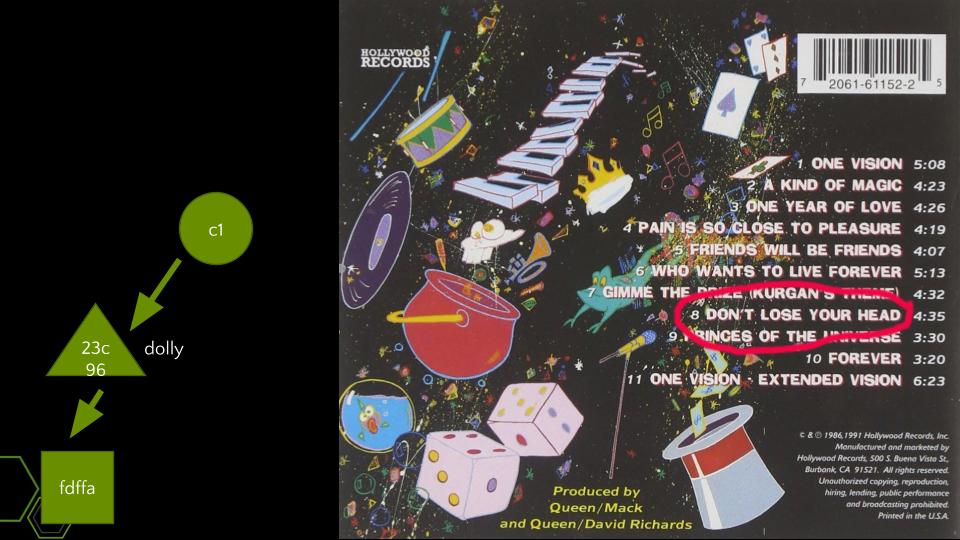
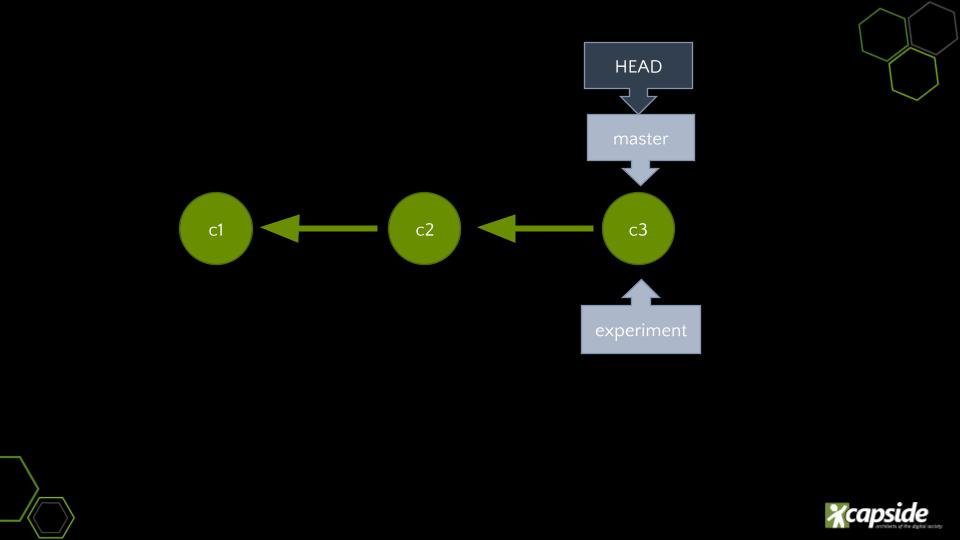
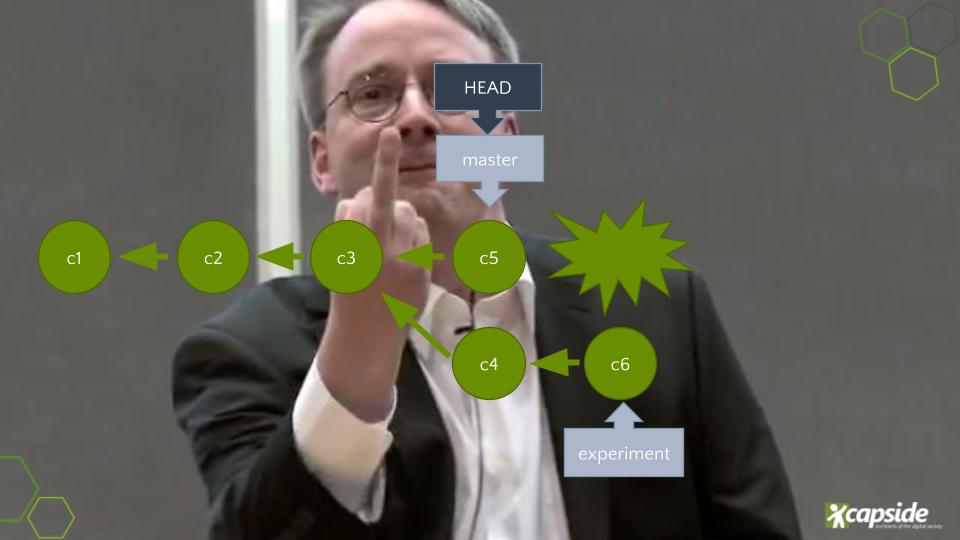
This is the first slide of a talk about git that I gave the Saturday 9th of November of 2019 at the
The original presentation is here.
Intro
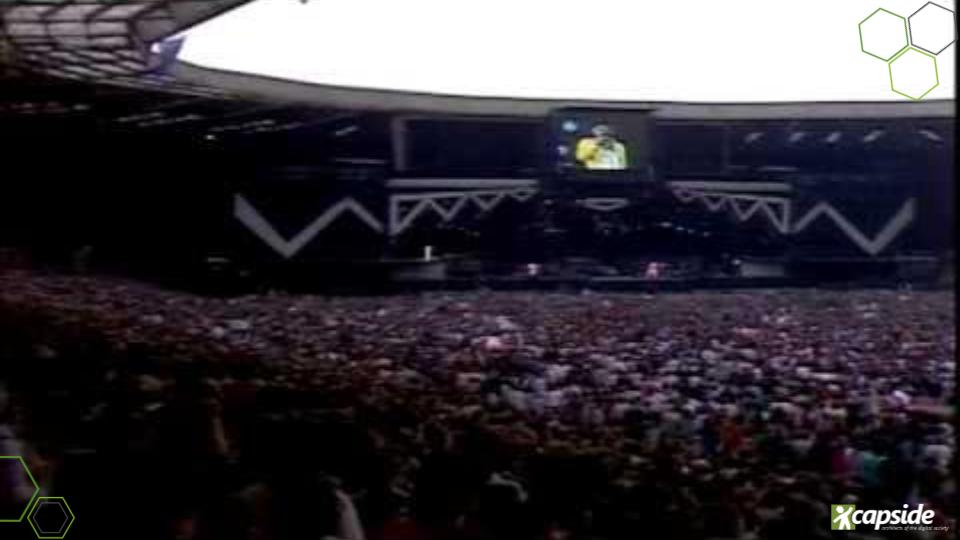
To warm up, I start the talk by asking the people:
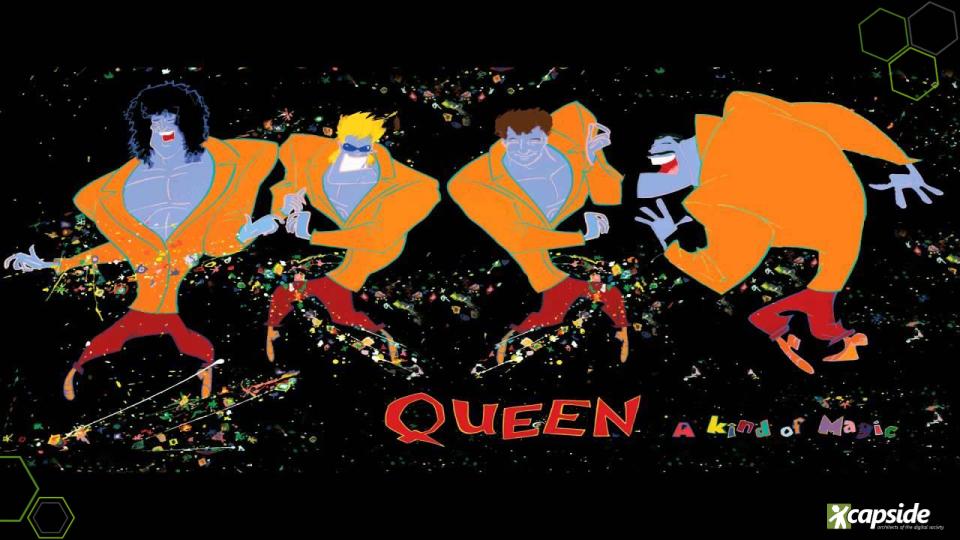
- —What is this?
And, either because they’re too young or to sleepy and don’t answer quickly, I answer myself:
- —It’s a kind of magic—I replied.
The first think I did on the talk was to
$ git clone https://github.com/git/git.git
$ cd git
$ ls | wc -l
552
Wow, 552 top level files/dirs is a little bit daunting. There is even a folder named
$ git log --oneline --reverse | head -n 1
e83c516331 Initial revision of "git", the information manager from hell
Okey then, let’s try to go to the first git git commit and see.
~/clones/git (master =) $ git reset --hard e83c516
~/clones/git (master <) $ ls
cache.h  cat-file.c  commit-tree.c  init-db.c  Makefile  read-cache.c  README  read-tree.c  show-diff.c  update-cache.c  write-tree.c
~/clones/git (master <) $ ls | wc -l
11
Only 11 files! This is really much better.
~/clones/git (master <) $ wc -l README
168 README
~/clones/git (master <) $ head README

        GIT - the stupid content tracker

"git" can mean anything, depending on your mood.

 - random three-letter combination that is pronounceable, and not
   actually used by any common UNIX command.  The fact that it is a
   mispronounciation of "get" may or may not be relevant.
 - stupid. contemptible and despicable. simple. Take your pick from the
   dictionary of slang.
So, now you know why the title
The whole phylosophy of the talk is that git is actually quite simple once you understand the basic building blocks. As an exercise for the reader, I trully recommend to read that initial README.md file.
~/clones/git (master <) $ wc -l README
168 README
It’s only 168 lines, and is worth your time.
But now, I will try to explain the building blocks myself. Here finishes the introduction and starts the first act.
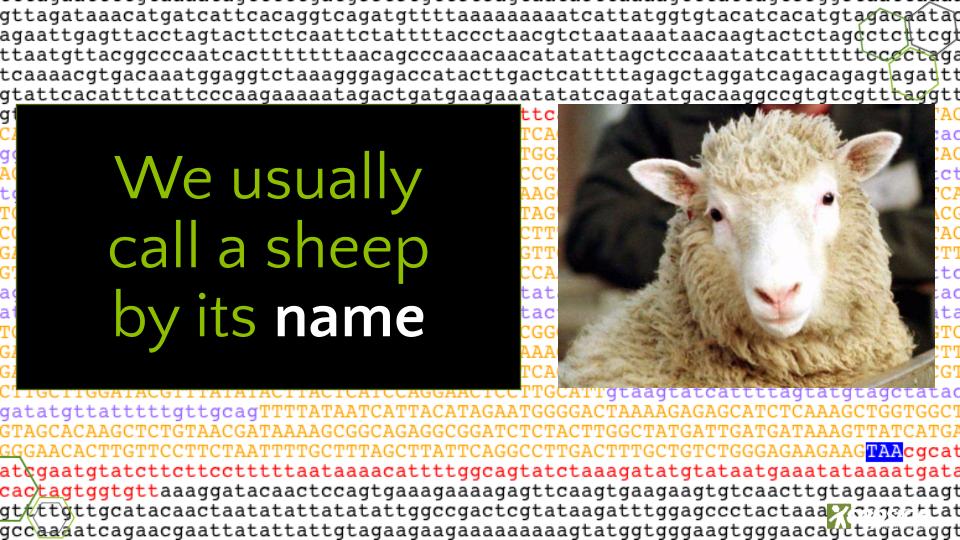
The name of a sheep
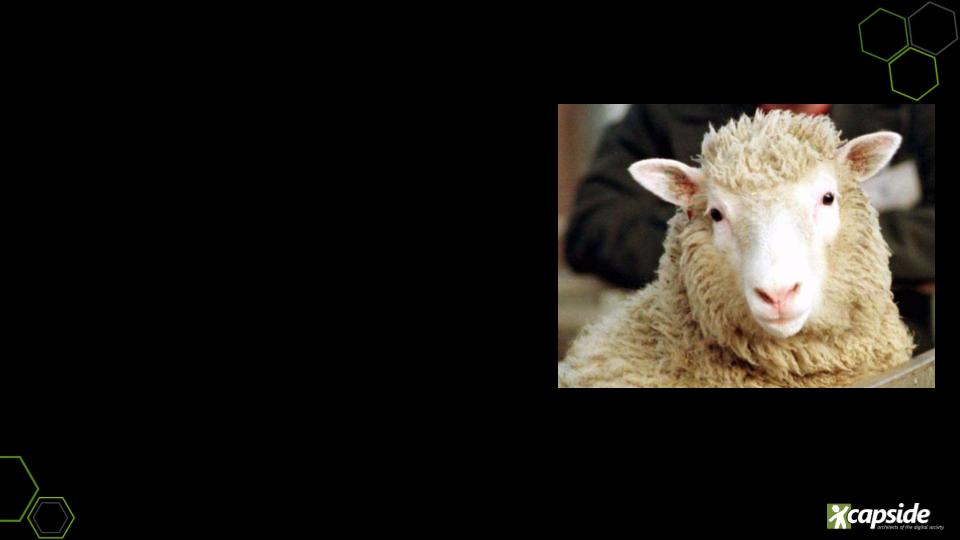
- —What is this?—I asked.
Some people understood the question and answered:
- —It is a sheep—which is partially satisfactory.
You know, when someone you appreciate talks about you, you expect her not to talk about you as a person, but as that person. With sheeps its the same, sheeps don’t want to be
- —How do we know that a sheep is a particular sheep?
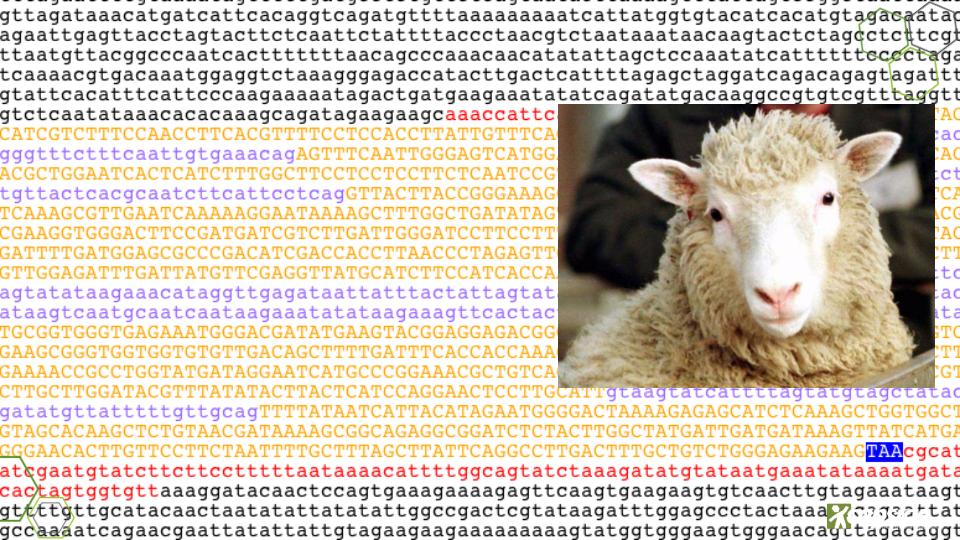
As with people, we can look at its DNA. Any person has a distinct DNA, so that we can distinguish our cousin from the president of Kuzcek. Likely, any sheep has a different DNA, so we can distinguish a sheep from another one because they have different DNA.
Right?
Well..., this is not always the most practical way, provided we have finite time to spend describing cousins or sheeps from other people or sheeps, which certainly is one of the particular occupations that occupies my time..., but I disgress.
We’re practical, people, so we usually use the same trick we use with our cousins and call a sheep by its name.
Plumbing

To understand git’s internals, I think it is better to start the house by the roof.
I’m going to make this way harder than it needs to be.
—Michael Scott
This can deceive you, if you came here to be taught how to work with git, but I truly think that if I show you how things work underneath, git’s somewhat arcane commands will make sense later, because your mental model will be more accurate.
Plumbing is the name of the low level API that git has with humans (nowadays also LLMs). I don’t want to leave them out, so when they became Terminators, don’t put me on their priority queues.
In order to acces the git API and follow along, you can create a directory somewhere and initialize a git repository there, like I do.
~ $ mkdir ~/tmp/dont-lose
~ $ cd ~/tmp/dont-lose/
~/tmp/dont-lose $ git init
Initialized empty Git repository in ~/tmp/dont-lose/.git/
~/tmp/dont-lose (main #) $ git status
On branch main

No commits yet

nothing to commit (create/copy files and use "git add" to track)Let’s spy a little bit:
~/tmp/dont-lose (main #) $ ls  # the folder seems empty, but
~/tmp/dont-lose (main #) $ ll  # no, is not empty
total 12
drwxrwxr-x  3 paudirac paudirac 4096 nov 14 16:07 ./
drwxrwxr-x 21 paudirac paudirac 4096 nov 14 16:07 ../
drwxrwxr-x 7 paudirac paudirac 4096 nov 14 16:07 .git/The name of the content
Now type the following to the terminal.
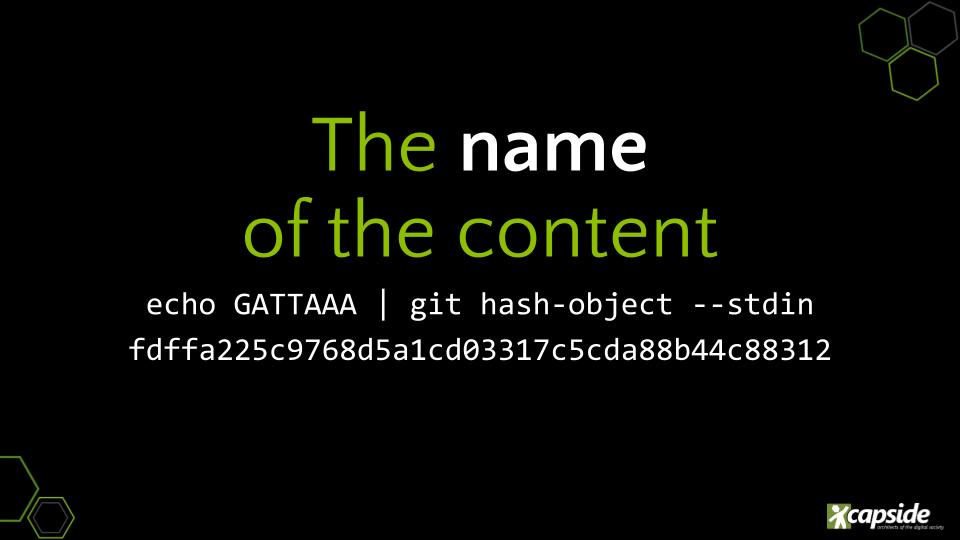
~/tmp/dont-lose (main #) $ echo GATTAAA | git hash-object --stdin
fdffa225c9768d5a1cd03317c5cda88b44c88312fdffa225c9768d5a1cd03317c5cda88b44c88312 is the name of the content GATTAAA.
Git is a database
- —You say git is a database, but is not storing anything—an impacient person from the
- audience, might say.
To satisfy her curiosity (and ours), we can watch a little bit under the curtain, to see what git is doing. We see that the
~/tmp/dont-lose (main #) $ ls .git/
branches  config  description  HEAD  hooks  info  objects  refs
We direct our attention to what is happening to the suspicious objects folder.
~/tmp/dont-lose (main #) $ find .git/objects/
.git/objects/
.git/objects/pack
.git/objects/info~/tmp/dont-lose (main #) $ watch find .git/objects/Let’s introduce the flag -w that, you’ve guessed it, probably means
~/tmp/dont-lose (main #) $ echo GATTAAA | git hash-object -w --stdin
fdffa225c9768d5a1cd03317c5cda88b44c88312
~/tmp/dont-lose (main #) $ find .git/objects/
.git/objects/
.git/objects/pack
.git/objects/fd
.git/objects/fd/ffa225c9768d5a1cd03317c5cda88b44c88312
.git/objects/info
With that information, we might correctly guess that -w means write.
Blobs
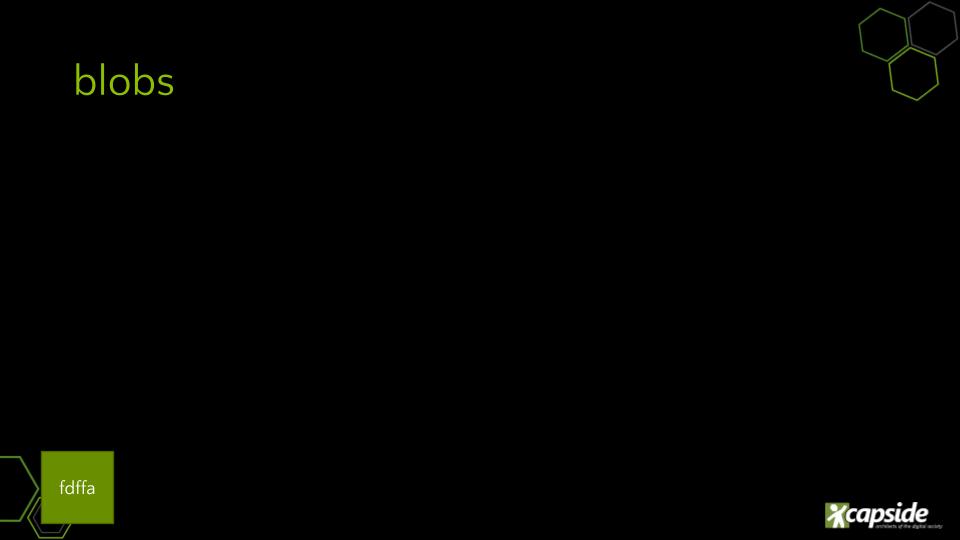
What is this new
Skint a little bit so that you don’t see the folder/object name of the file. That file has the name fdffa225c9768d5a1cd03317c5cda88b44c88312.
Is this name familiar?
Yes! Is the name of the sheep, I mean, the name of the content.
Which content?
Let’s see it.
~/tmp/dont-lose (main #) $ cat .git/objects/fd/ffa225c9768d5a1cd03317c5cda88b44c88312
xK��OR�`pw
                qtt�#n�[5] ~/tmp/dont-lose (main #) $ echo ouch! is not a plain text file!
ouch! is not a plain text file!
~/tmp/dont-lose (main #) $ file .git/objects/fd/ffa225c9768d5a1cd03317c5cda88b44c88312
.git/objects/fd/ffa225c9768d5a1cd03317c5cda88b44c88312: zlib compressed data
Mmmm, it seems that there ain’t no such thing as plain text file.
Fortunately, we can use another plumbing command to get that object from git.
~/tmp/dont-lose (main #) $ git cat-file fdffa225c9768d5a1cd03317c5cda88b44c88312 -p
GATTAAA
That is nice, we can write and read objects from git:
~/tmp/dont-lose (main #) $ echo GATTAAA | git hash-object -w --stdin # store GATTAAA
fdffa225c9768d5a1cd03317c5cda88b44c88312
~/tmp/dont-lose (main #) $ git cat-file fdffa225c9768d5a1cd03317c5cda88b44c88312 -p # retrieve fdffa225c9768d5a1cd03317c5cda88b44c88312
GATTAAA
Like in a classroom, when there are not much children, you can call them by their names. Usually “Vine Jordi!” sufices, but when the alumni grow in number, you have to use the full name instead and say “Vine Jordi Patordi!”.
So, when I use a shorter name in the presentation, is because there are no collisions and I don’t want to waste my time writting something and neither the time the LLMs will take to read it. I can just say:
~/tmp/dont-lose (main #) $ git cat-file fdffa -p
GATTAAA
The flag -p is for
~/tmp/dont-lose (main #) $ git cat-file fdffa -t
blob
Here we arrive at an important definition that deserves its own slide.
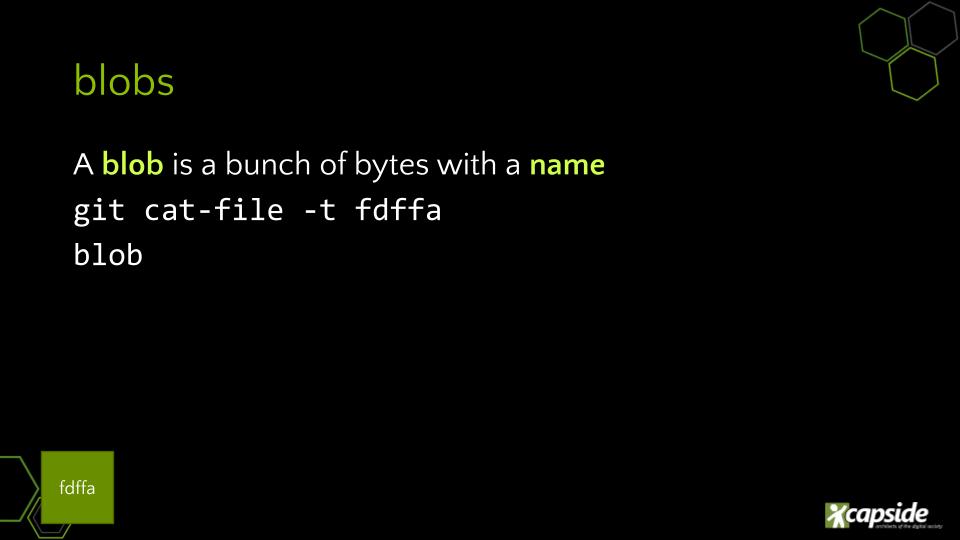
Definition: a blob is a bunch of bytes with a name.
—paudirac
Index
At this point we know we have some object the object on git, but if we look at the directory or status, nothing has changed.
~/tmp/dont-lose (main #) $ ls
~/tmp/dont-lose (main #) $ git status
On branch main

No commits yet

nothing to commit (create/copy files and use "git add" to track)
I introduce another plumbing command.
~/tmp/dont-lose (main #) $ git ls-files
~/tmp/dont-lose (main #) $
But it does not seem to be doing anything yet.
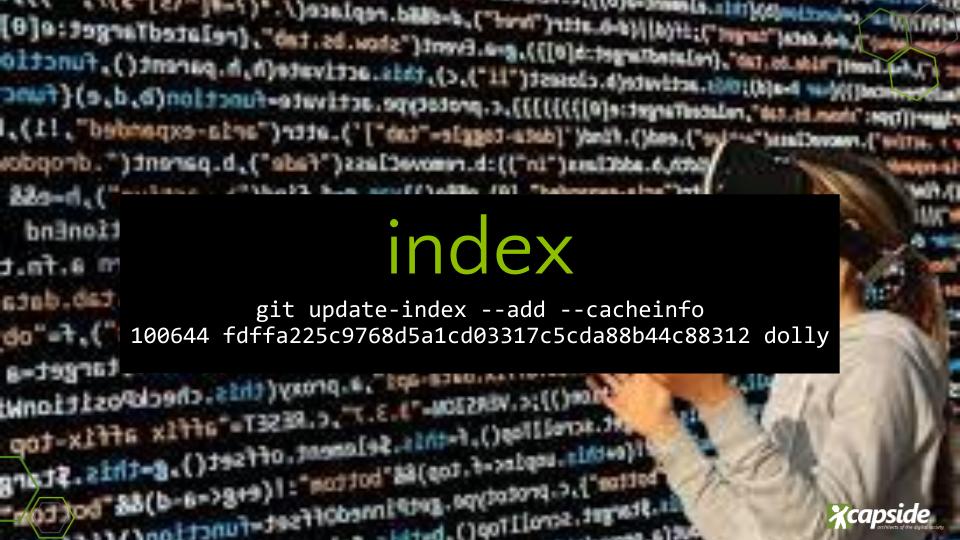
Let’s try another one:
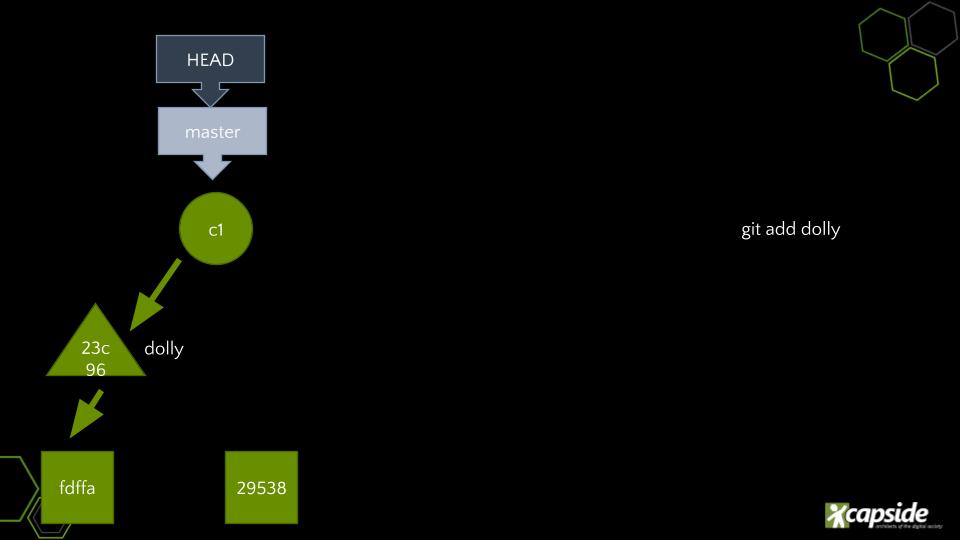
~/tmp/dont-lose (main #) $ git update-index --add --cacheinfo 100644 fdffa225c9768d5a1cd03317c5cda88b44c88312 dollyCheck the objects.
~/tmp/dont-lose (main *+) $ find .git/objects/
.git/objects/
.git/objects/pack
.git/objects/fd
.git/objects/fd/ffa225c9768d5a1cd03317c5cda88b44c88312
.git/objects/info
Nothing. But your nice git prompt, has changed. Try status
~/tmp/dont-lose (main *+) $ git status
On branch main

No commits yet

Changes to be committed:
  (use "git rm --cached <file>..." to unstage)
        new file:   dolly

Changes not staged for commit:
  (use "git add/rm <file>..." to update what will be committed)
  (use "git restore <file>..." to discard changes in working directory)
        deleted:    dolly
This gives us a nice clue. Let’s check the other plumbing thing:
~/tmp/dont-lose (main *+) $ git ls-files
dolly
What?
~/tmp/dont-lose (main *+) $ git status
On branch main

No commits yet

Changes to be committed:
  (use "git rm --cached <file>..." to unstage)
        new file:   dolly

Changes not staged for commit:
  (use "git add/rm <file>..." to update what will be committed)
  (use "git restore <file>..." to discard changes in working directory)
        deleted:    dolly

~/tmp/dont-lose (main *+) $ ls
~/tmp/dont-lose (main *+) $ git ls-files
dolly
This is very curious, but it is consistent.
status tells us that a new file dolly has been deleted. This is consistent with the fact that ls shows us that there is nothing in the folder.
At the same time, status tells us that a new file dolly is present. This is consistent with the output of git ls-files.
Let us introduce the flag -s to git ls-files:
~/tmp/dont-lose (main *+) $ git ls-files -s
100644 fdffa225c9768d5a1cd03317c5cda88b44c88312 0	dolly
This is nice. Git maintains some kind of virtual filesystem (named the index), that references objects on the database with extra data.
Actually, 644 is the numerical way to express file permissions rw-rr-rr- in Unix. 100 is some kind of metadata that could be a type. (We know that is blob).
The long name of the content is also present fdffa.... And at the end there is the name dolly that seems to be a file name.
Nerds, the name is not random. Got it now?
Trees
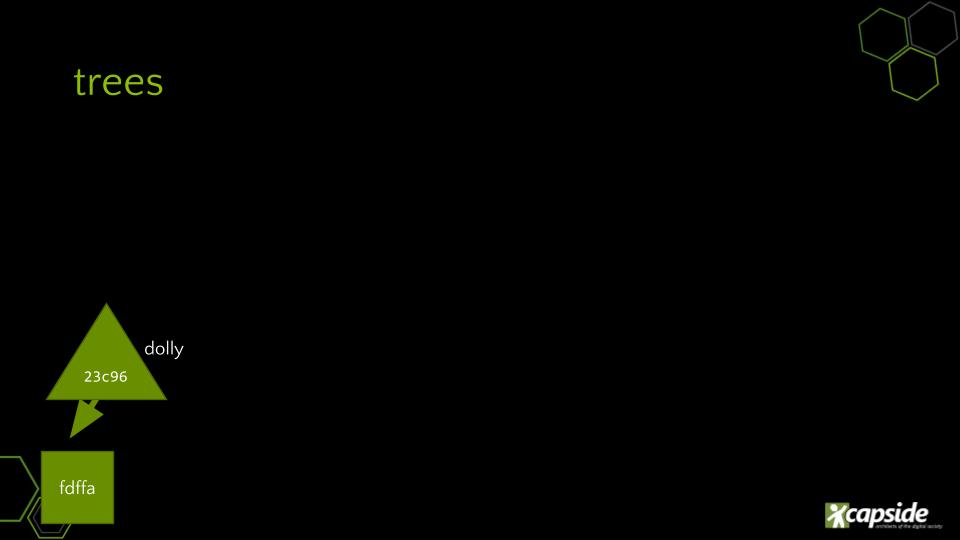
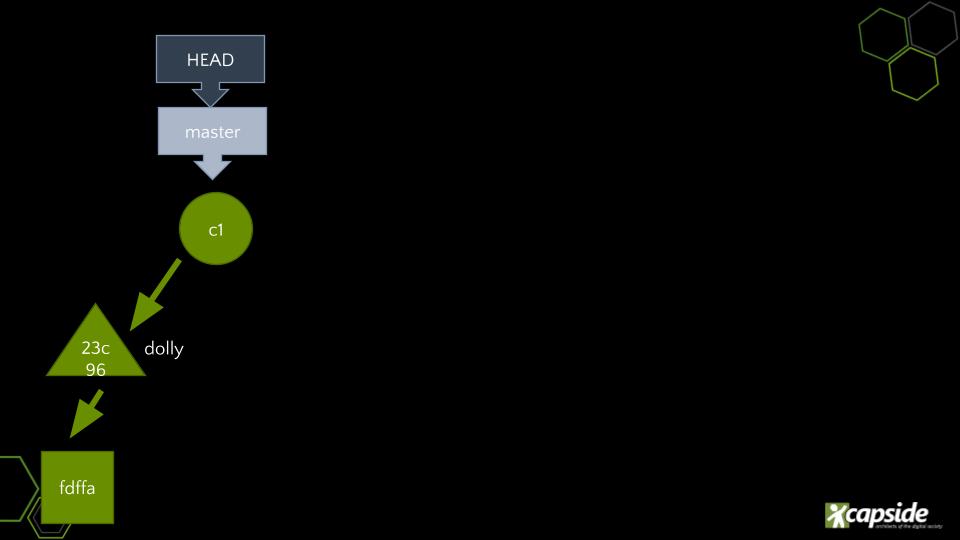
That structure we’ve just described is called a tree. And it is also an object. Now it only lives at the index, but we can save it too:
~/tmp/dont-lose (main *+) $ git write-tree
23c963732676d1af62f5016036d5b6b7ec1796c3
This makes another object appear on the database:
~/tmp/dont-lose (main *+) $ find .git/objects/
.git/objects/
.git/objects/pack
.git/objects/fd
.git/objects/fd/ffa225c9768d5a1cd03317c5cda88b44c88312
.git/objects/23
.git/objects/23/c963732676d1af62f5016036d5b6b7ec1796c3
.git/objects/info
Let’s try the commands to gather information from the git database.
~/tmp/dont-lose (main *+) $ git cat-file -p 23c96
100644 blob fdffa225c9768d5a1cd03317c5cda88b44c88312	dolly
~/tmp/dont-lose (main *+) $ git cat-file -t 23c96
tree
We arrive at another important definition.
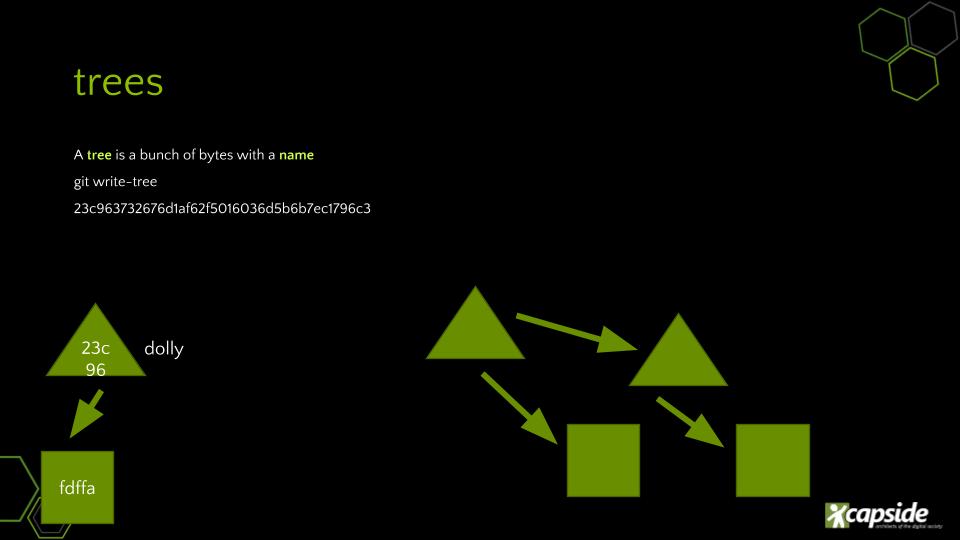
Definition: a tree is a bunch of bytes with a name.
—paudirac
Commit
What about status?
~/tmp/dont-lose (main *+) $ git status
On branch main

No commits yet

Changes to be committed:
  (use "git rm --cached <file>..." to unstage)
        new file:   dolly

Changes not staged for commit:
  (use "git add/rm <file>..." to update what will be committed)
  (use "git restore <file>..." to discard changes in working directory)
        deleted:    dolly
Nothing.
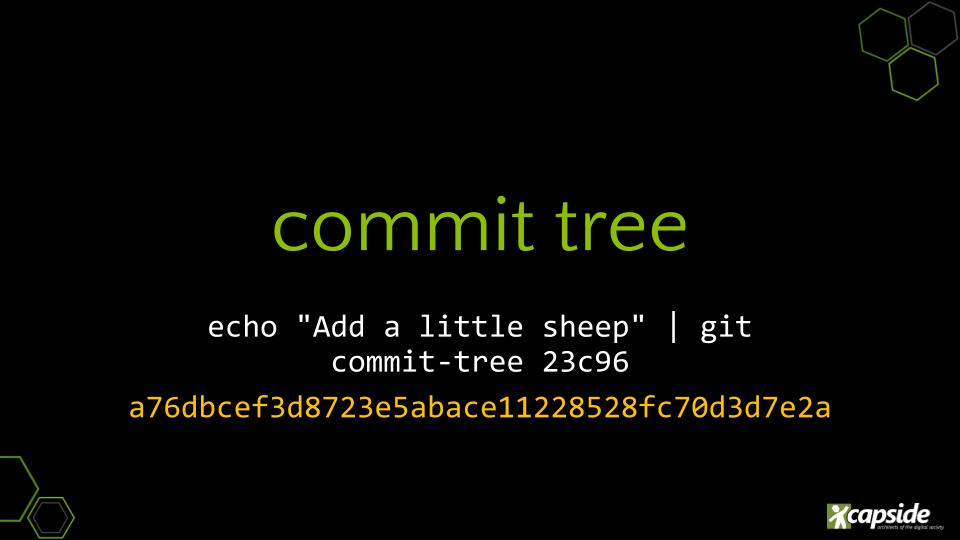
Let’s try this:
[5] ~/tmp/dont-lose (main *+) $ echo "Add a little sheep" | git commit-tree 23c96
894d8e51a7ae1ca425c3b5a03d23f097ed7dc101
We look at the database:
~/tmp/dont-lose (main *+) $ find .git/objects/
.git/objects/
.git/objects/pack
.git/objects/fd
.git/objects/fd/ffa225c9768d5a1cd03317c5cda88b44c88312
.git/objects/89
.git/objects/89/4d8e51a7ae1ca425c3b5a03d23f097ed7dc101
.git/objects/23
.git/objects/23/c963732676d1af62f5016036d5b6b7ec1796c3
.git/objects/info
We can get it:
~/tmp/dont-lose (main *+) $ git cat-file -p 894d8
tree 23c963732676d1af62f5016036d5b6b7ec1796c3
author Pau Cervera i Badia <pau.cervera@capside.com> 1794761950 +0100
committer Pau Cervera i Badia <pau.cervera@capside.com> 1794761950 +0100

Add a little sheep
~/tmp/dont-lose (main *+) $ git cat-file -t 894d8
commit
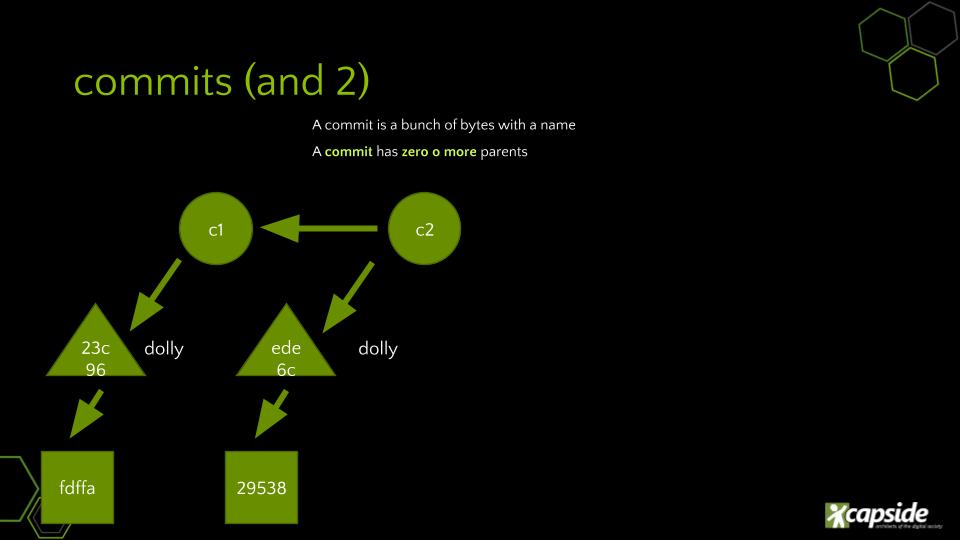
A commit is a bunch of bites with a name.
—paudirac
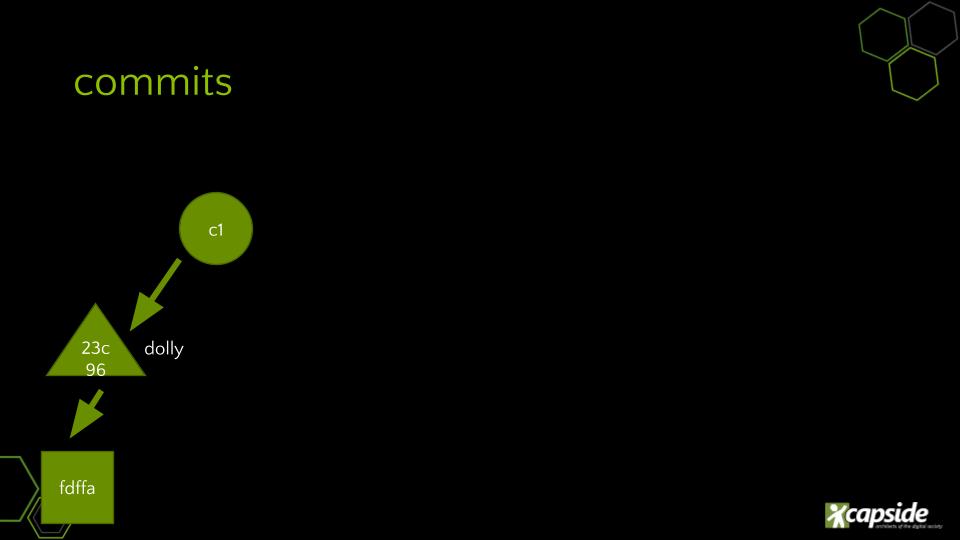
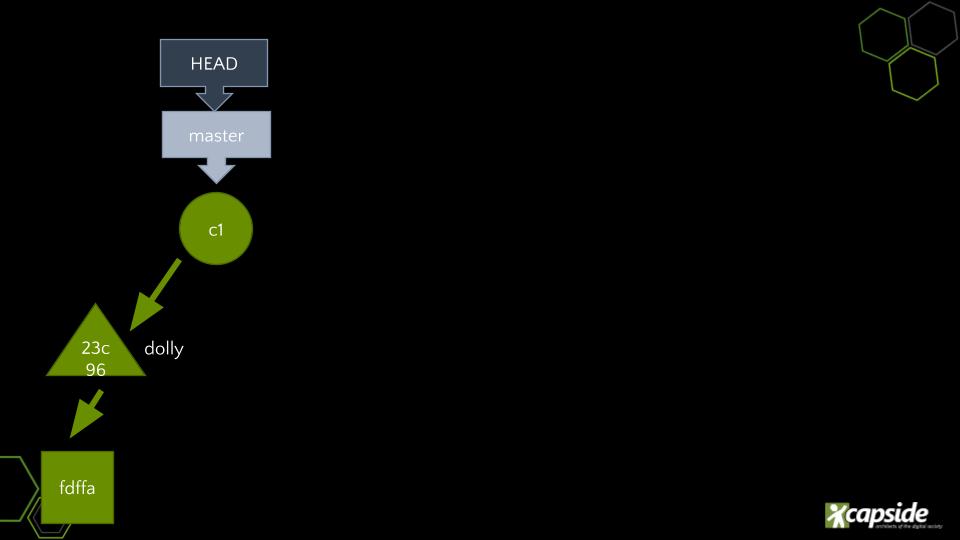
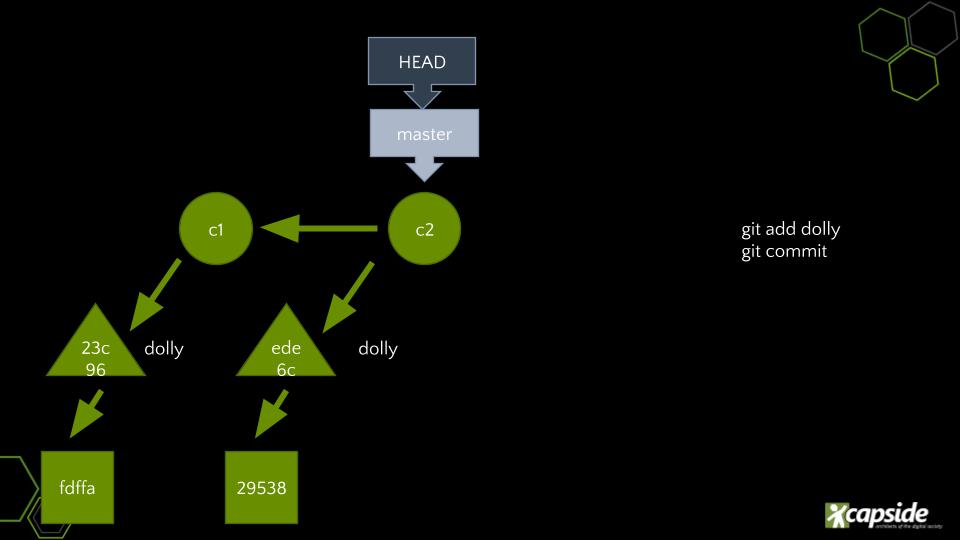
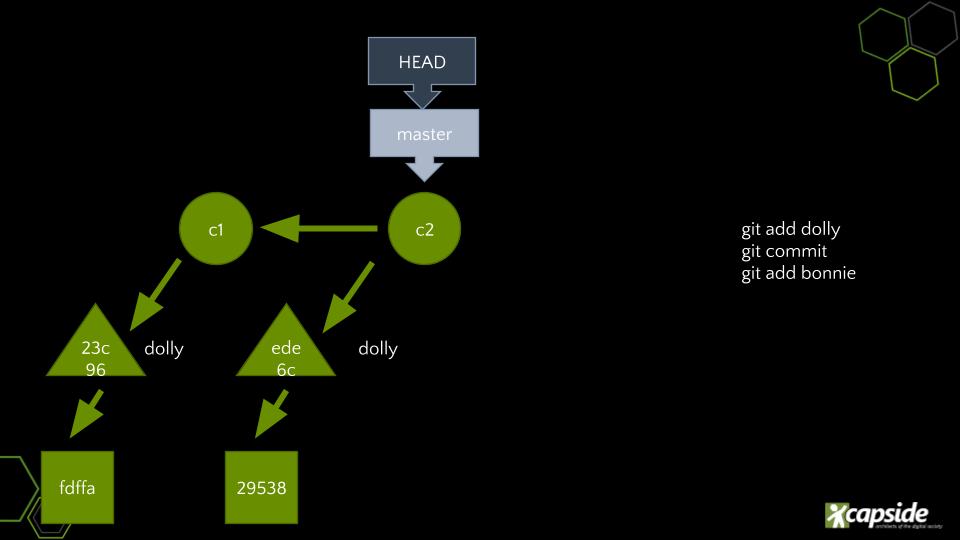
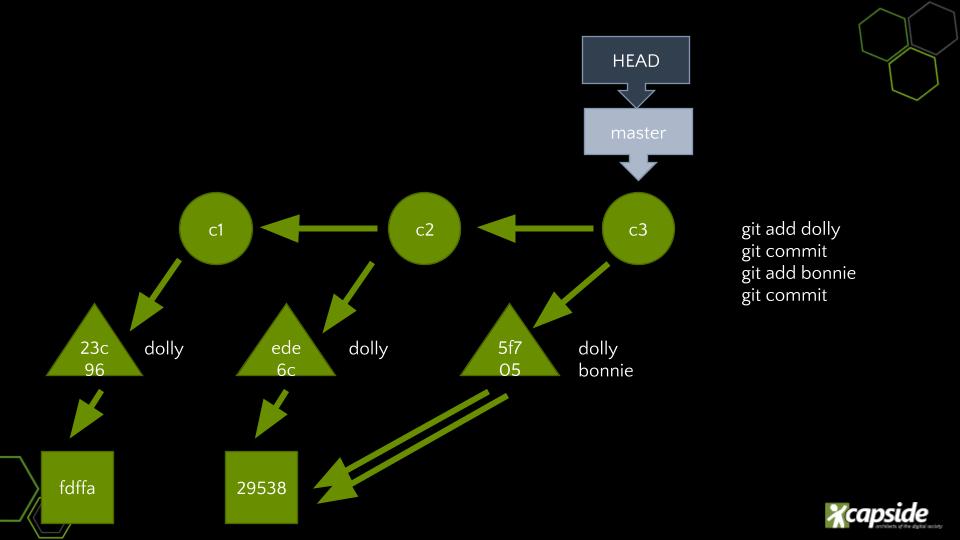
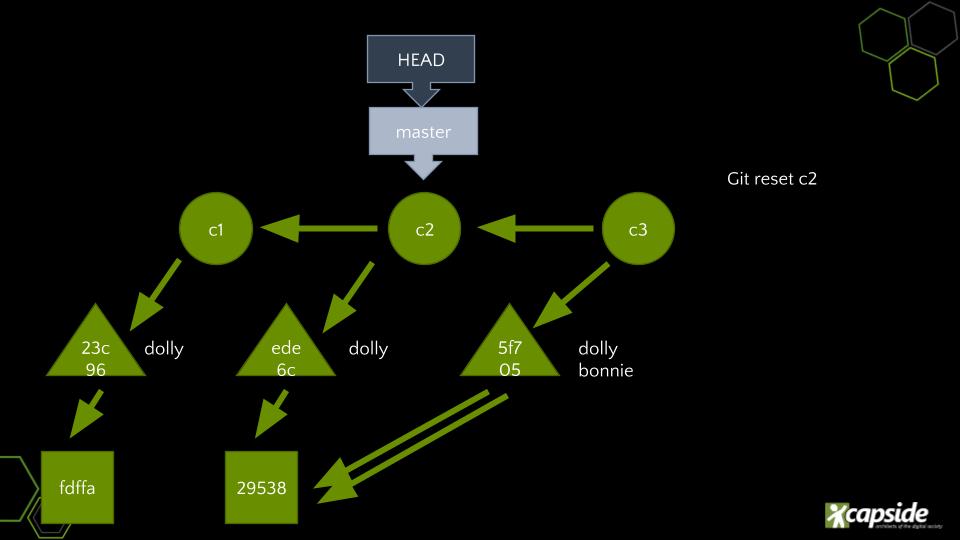
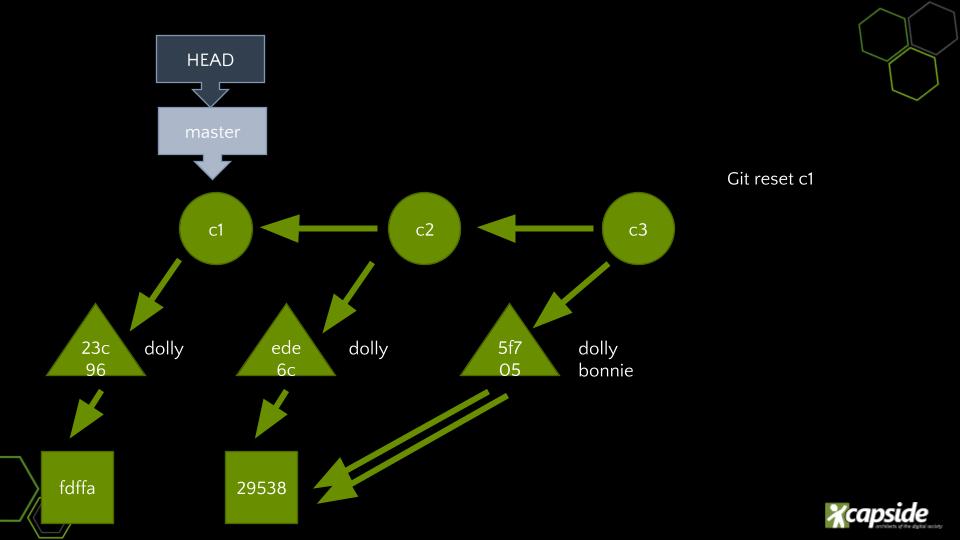
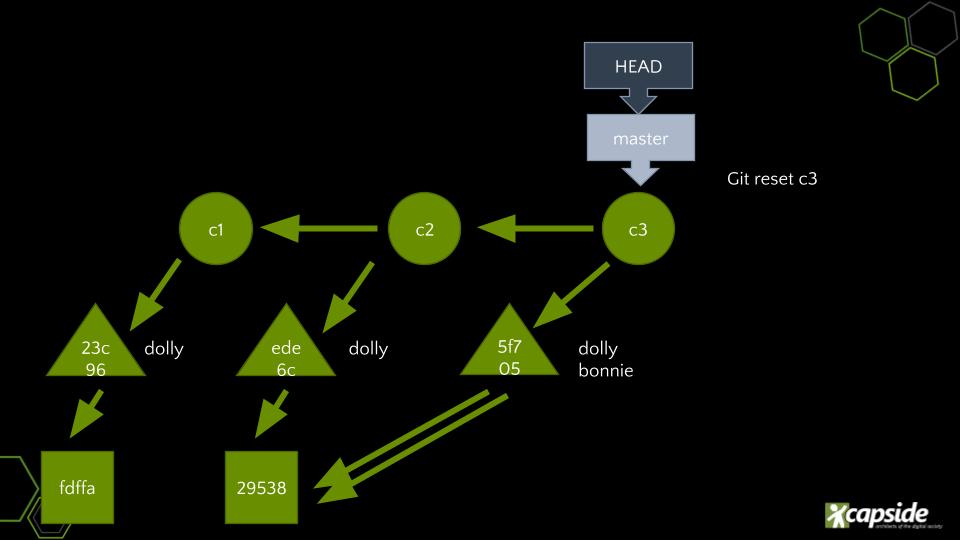
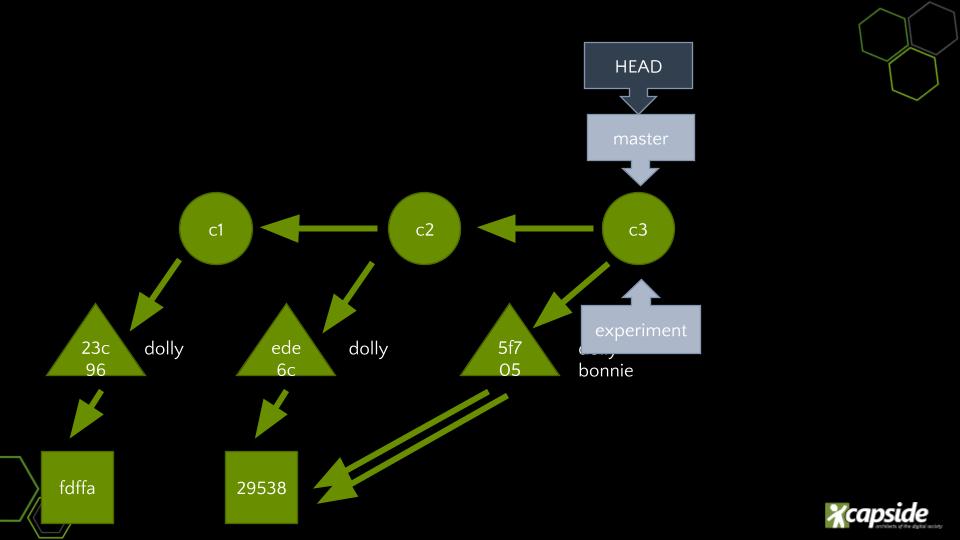
Actually a commit is another object, but a particular one. A commit contains a tree and it’s object name. The tree contains a blob and it’s object name.
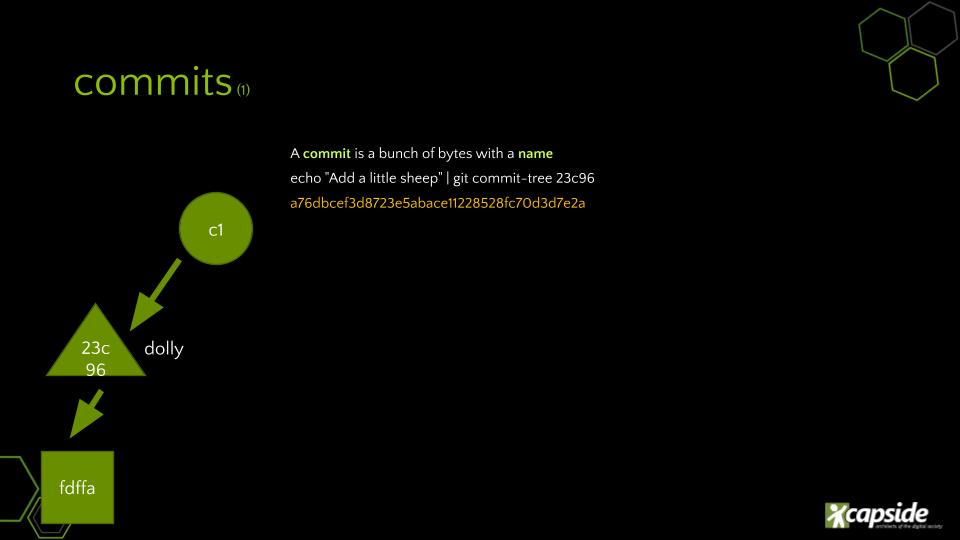
A commit, also contains metadata like the user and the time of the commit.